

How to create a temporary one-page site?
A one-page site or a landing page can also be called an under-construction page. It is a perfect way to tell visitors that your real site will be ready soon and lists any important information. Typically, you will include contact and order information useful for offline contact (i.e. phone number, mailing address, email).
Creating a Temporary Page
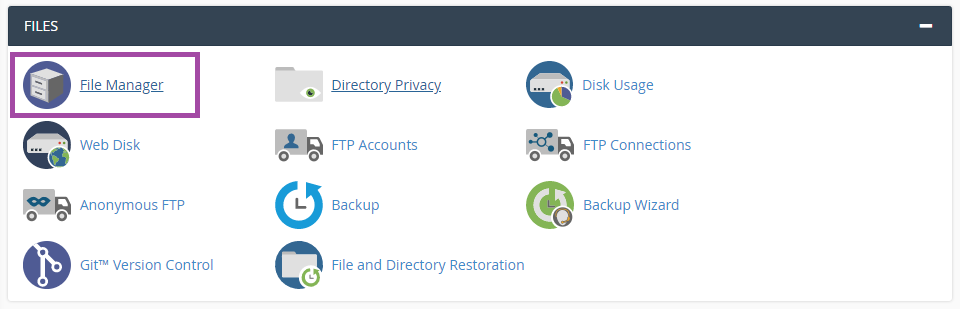
The easiest way is to use the File Manager found in cPanel.
Log into cPanel.
Click on the File Manager icon:
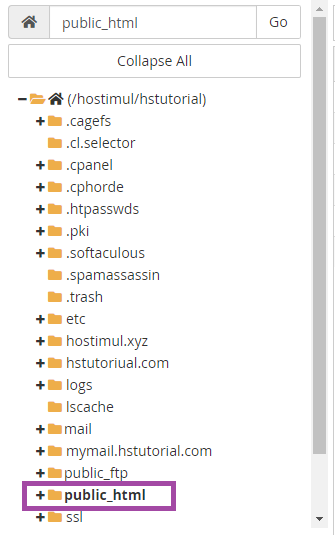
On the left column, choose (public_html/www) folder:
Go to the top menu on the page and click the New File icon.
For the new file name, type "index.html" (without the quotation marks):
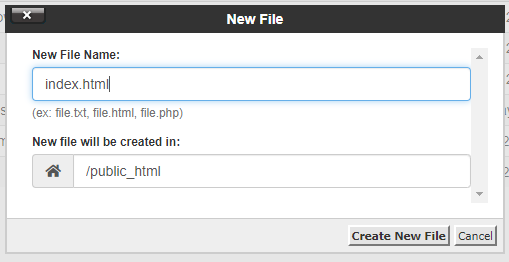
Click the Create New File button.
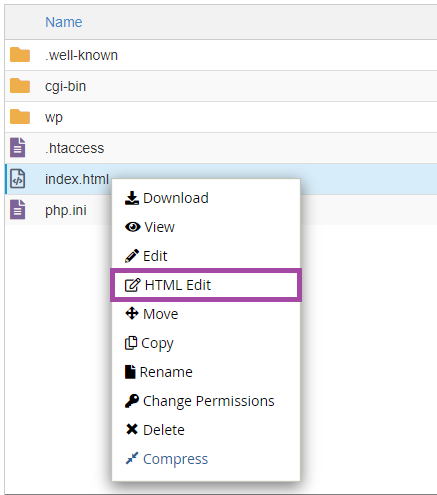
Look for the new file you created in the main list
Right-click the icon for index.html and choose the HTML Edit option from the drop-down:
At the new window click Edit button:
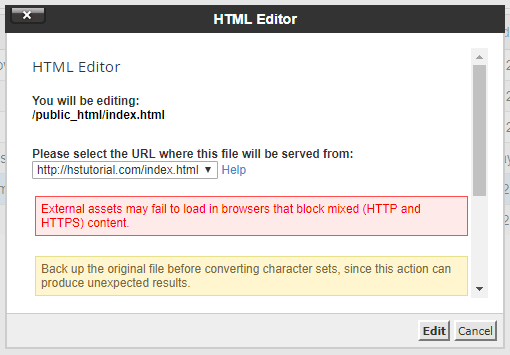
At the new page, you will be able to use an HTML editor:
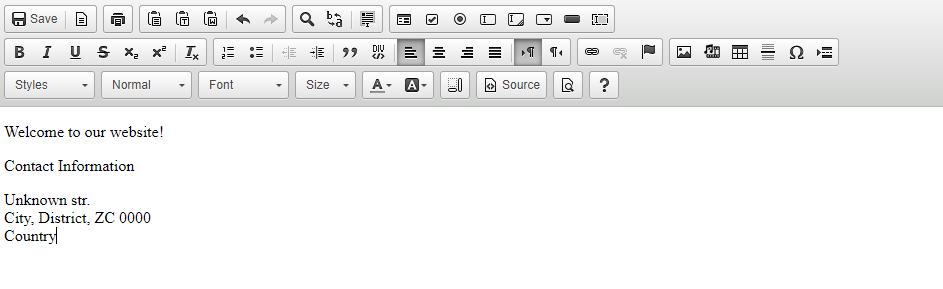
Adding Images to the Temporary Page
To add images to your HTML editor page:
Login to cPanel.
Click on the File Manager icon.
On the left column the (public_html/www) folder.
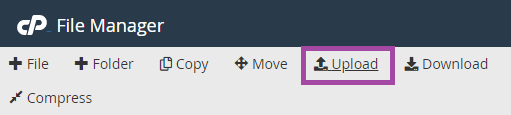
Go to the top menu on the page and click the Upload icon:
On the new window, click the Select File button to locate the images on the local computer:
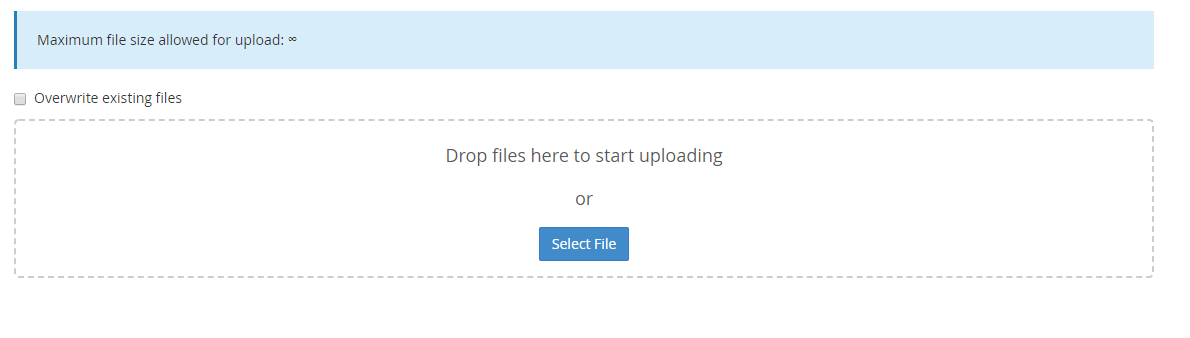 Double click the image when found, and wait for the blue bar to reach 100% Complete.
Click the Back to /home/your-user-name/public_html link. The image file will now appear along with your index.html file.
Go back to the HTML Edit tool.
Click the Image icon:
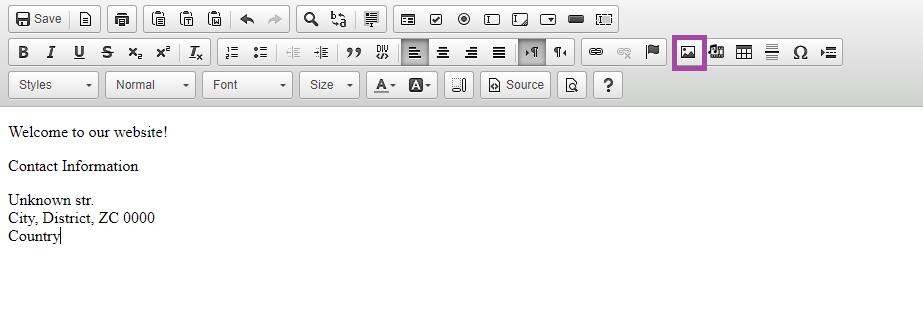
A popup box will appear with options for managing the image you wish to include. Please click Browse Server to select an image stored on the server:
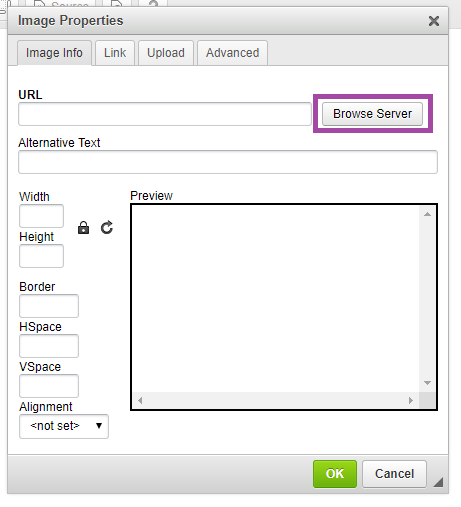
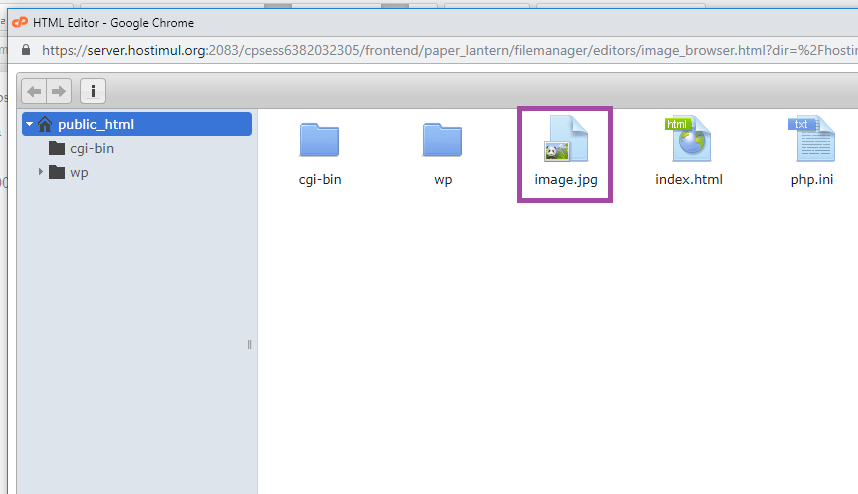
A new window will popup. Use the navigation menus to browse to the location where the image you wish to use is saved, then double click the image file:
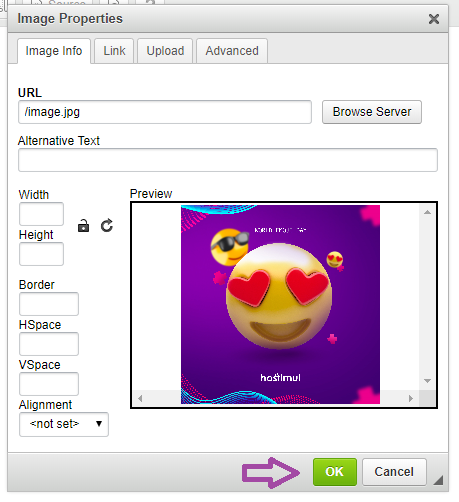
You will be returned to the original popup box. From here you may select options such as to change the dimensions of the image. When you are done selecting additional options for your image, please click Ok:
Go to the top left of the editor and click the Save icon.